For safety, accounts are automatically locked after 5 incorrect password attempts.
It's important to let your staff know that if they have issues remembering their password, before the 5 attempts are up, they can do their own reset by following the instructions in this article: Resetting Password.
You can also go into their account and reset it using the following steps:
Step 1: Access the staff member's account
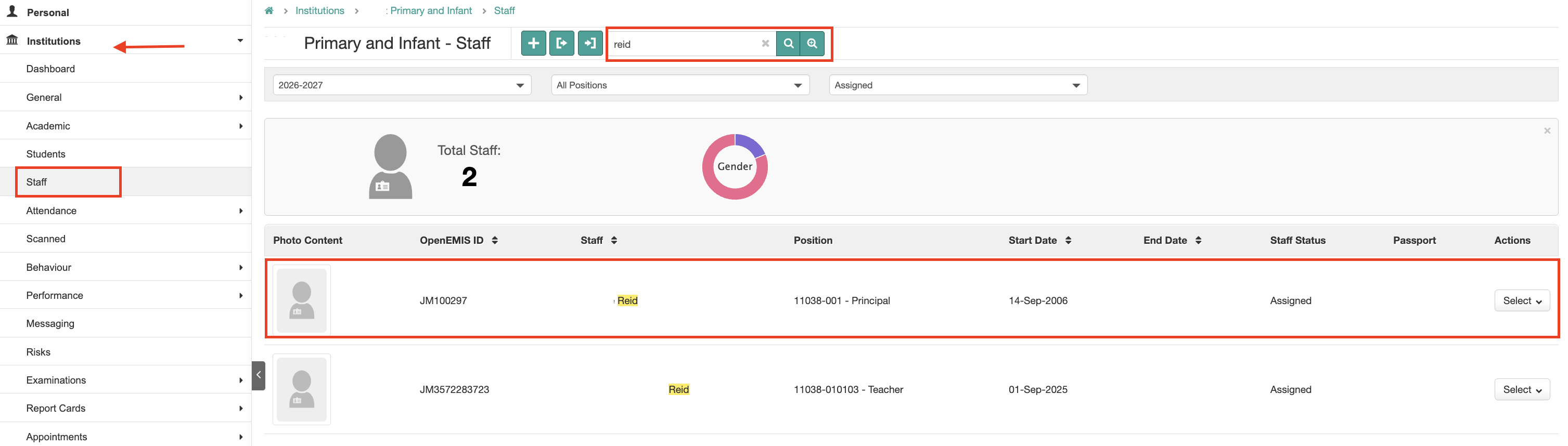
- When you log in, click the Staff button
- Search for the staff member using the search box
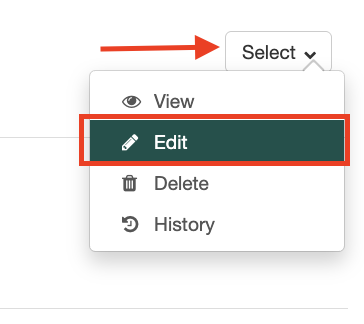
- Click their name, or Select then Edit
Step 2: Access the Account tab
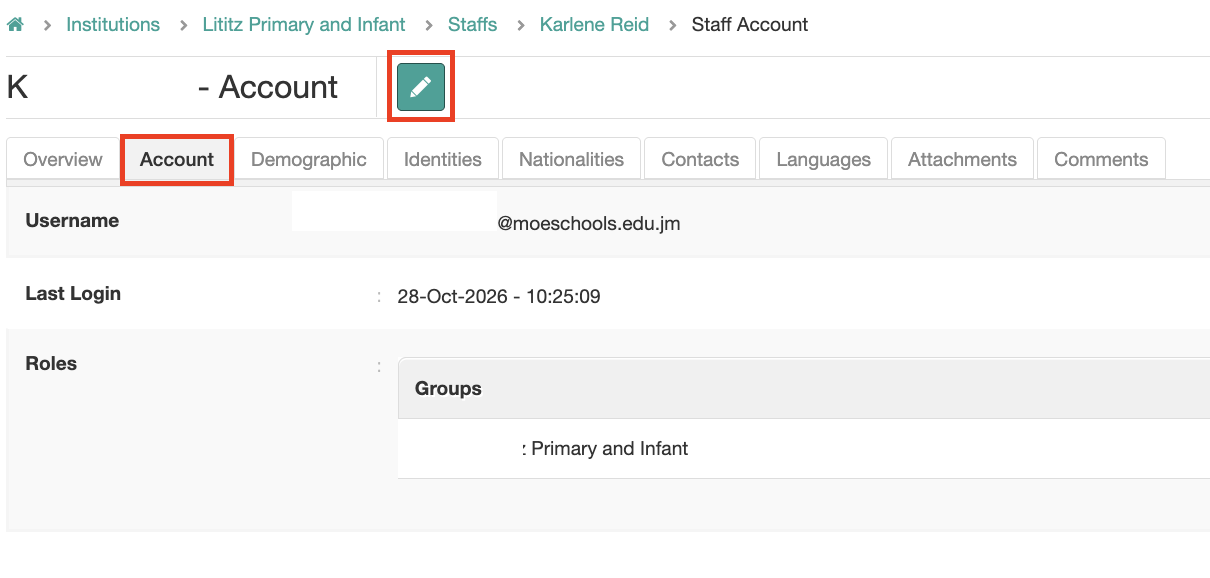
- Once on the staff details page, click Account
- There you will see the username, last login, and user role
- Click the Pencil icon to go into edit mode
Step 3: Edit the Account details
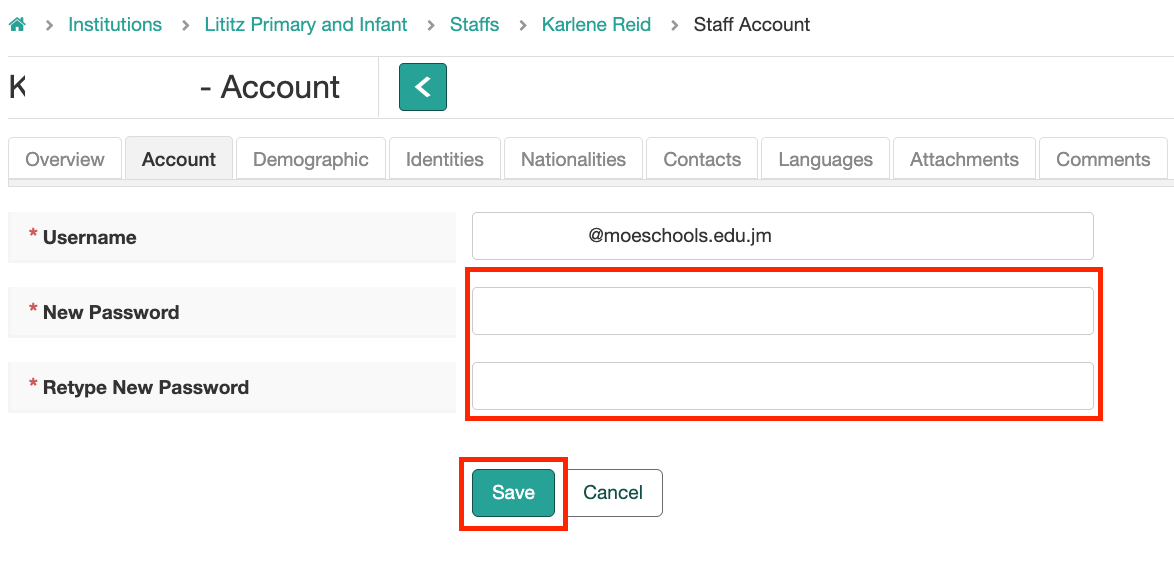
- You can update the Username and update the New Password
- You must type the password twice to save it
- Click Save and tell the staff member their new temporary password
If you change the username, the password must be updated as well.
If the password is changed, the staff member will have to create a new unique password when they log in again
Was this article helpful?
That’s Great!
Thank you for your feedback
Sorry! We couldn't be helpful
Thank you for your feedback
Feedback sent
We appreciate your effort and will try to fix the article