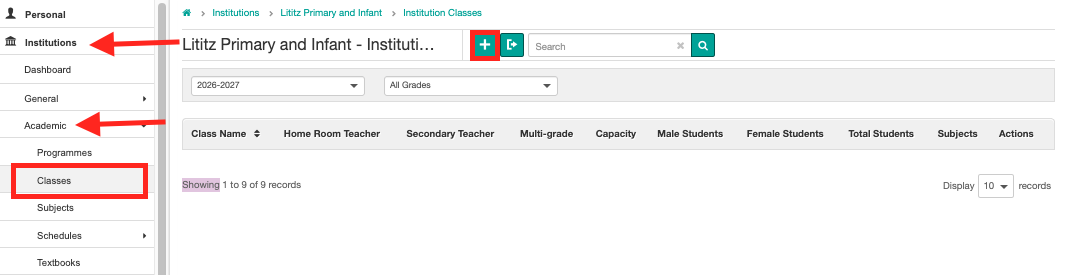
Step 1: Click the Institutions button on the left side of the screen.
Step 2: Click Academic.
Step 3: Click Classes.
Step 4: Click the Add button to create a new Class.
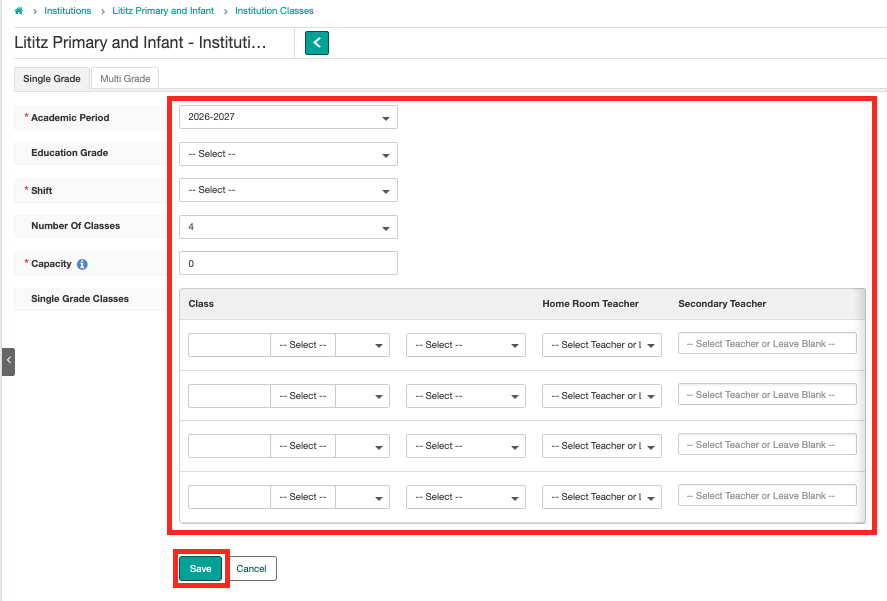
Step 5: Fill in the following fields.
Single Grade Classes
Academic Period (required) – the current academic year for the class.
Education Grade (required) – the grade level for the class.
Shift (required) – the time interval spent in school.
Number of Classes – create multiple classes in one instance by selecting the desired number from the Number of Classes drop-down.
Capacity (required) – number of students expected to be in the class + some additional seats for a buffer.
You will also need to enter the following information:
Class Name (required) – the system will auto-generate names for Classes based on the Programme selected; however, you can change the name by clicking in the name box and editing the text.
Unit and Course – a unit is a study component focused on a particular subject or topic, while a course is a program of study. For example, a course: Information Technology with units: Networking, Cloud Computing, and Programming.
Home Room Teacher – assign a teacher to a class. If staff positions have not been created or assigned to a position, then no teachers will appear in the drop-down.
Secondary Teacher– assign a second teacher to a class, if applicable.
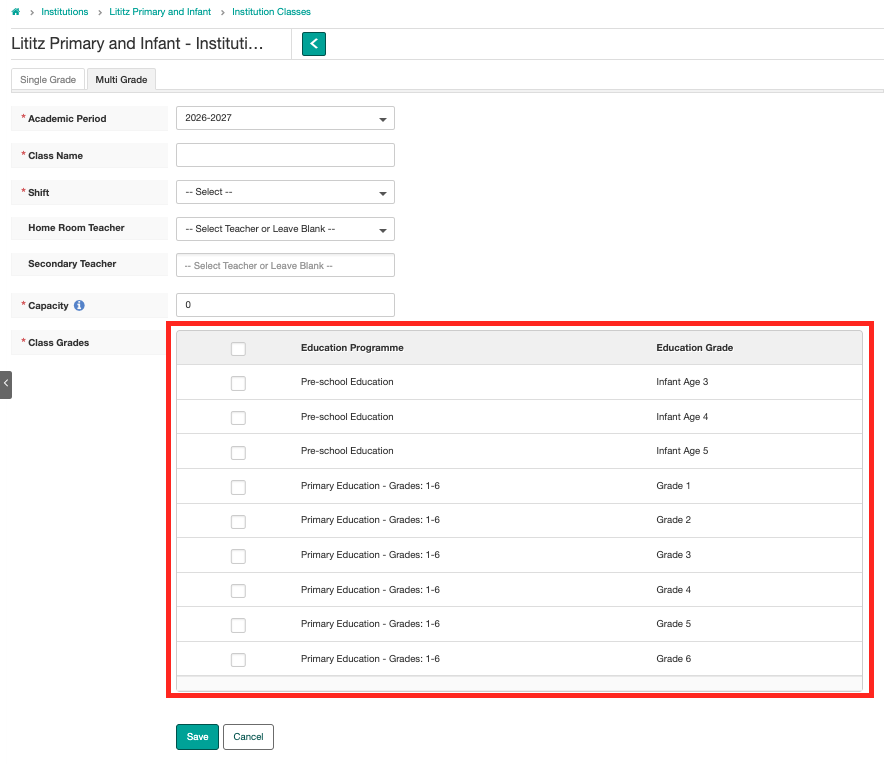
Multi-Grade Classes
Academic Period (required) – the current academic year for the class.
Class Name (required) – enter a clear name that indicates this class has multiple grades in one.
Shift (required) – the time interval spent in school.
Institution Unit and Course – a unit is a study component focused on a particular subject or topic, while a course is a program of study. For example, a course: Information Technology with units: Networking, Cloud Computing, and Programming.
Home Room Teacher – assign a teacher to a class. If staff positions have not been created or assigned to a position, then no teachers will appear in the drop-down.
Secondary Teacher– assign a second teacher to a class, if applicable.
Capacity (required) – number of students expected to be in the class + some additional seats for a buffer.
Class Grades (required) – select all the grades that will be in this class.
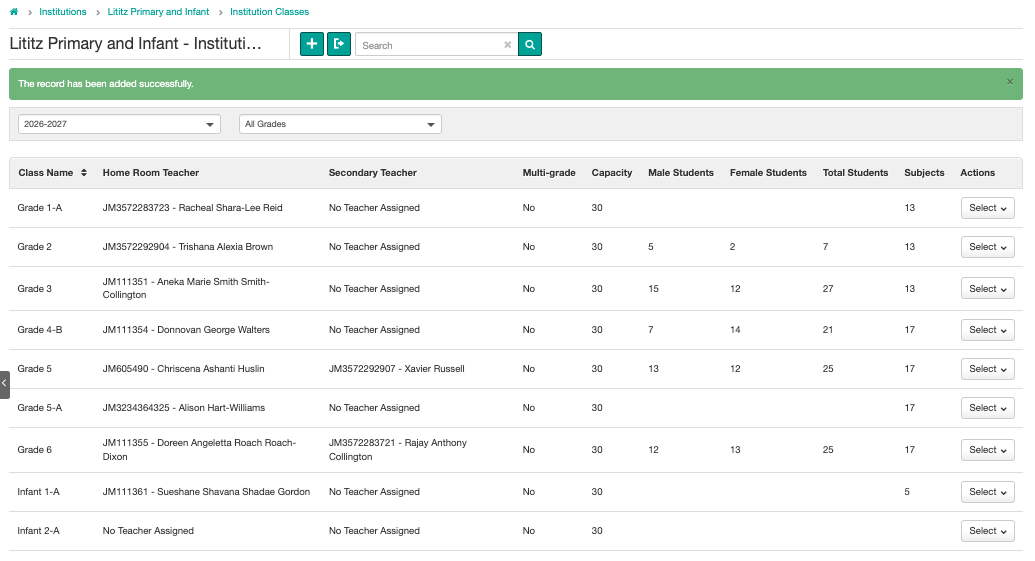
Step 6: Click Save when done.
You will be directed to the page with all classes. Check that there is a success message stating the record has been added successfully.
Was this article helpful?
That’s Great!
Thank you for your feedback
Sorry! We couldn't be helpful
Thank you for your feedback
Feedback sent
We appreciate your effort and will try to fix the article