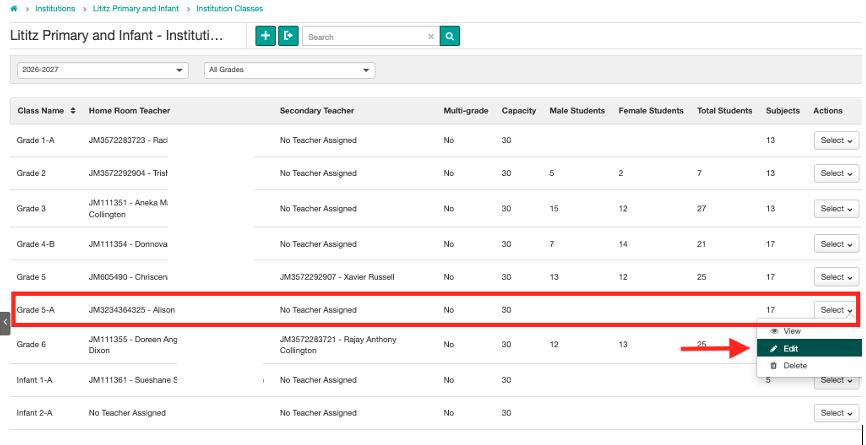
Step 1: Select a class from the Class list, then select Edit from the actions button to the right of the class. Ensure the correct academic period is selected.
The class details will be shown. At the bottom, the Add Student field will list the Unassigned and Assigned Students available for the grade and class in the school.
Step 2: Search the Unassigned Students box and select all the students who should be added to this class.
Step 3: When you have selected the students to be assigned, click the Assign button below.
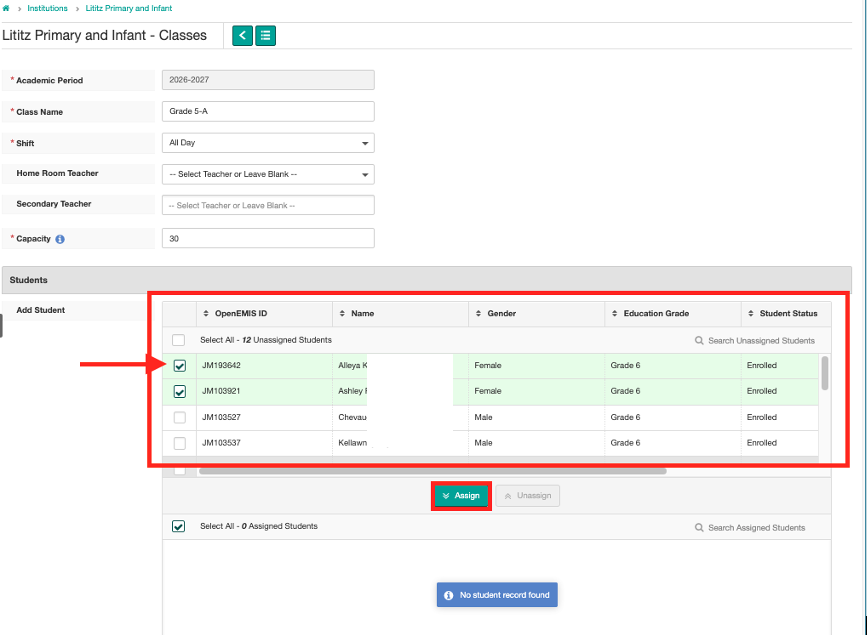
If no students appear, check if the students were added to the system and if they are assigned to the Education Grade of the class you are currently in.
Step 4: Check the Assigned Students box to verify all the students you just assigned are in this list.
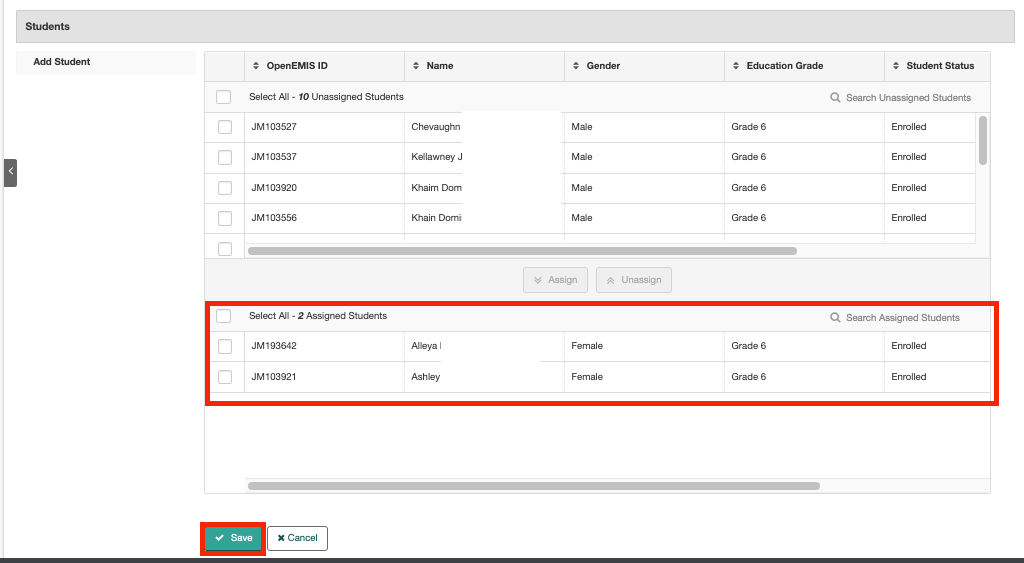
Step 5: Click Save. The students will be assigned to the chosen class.
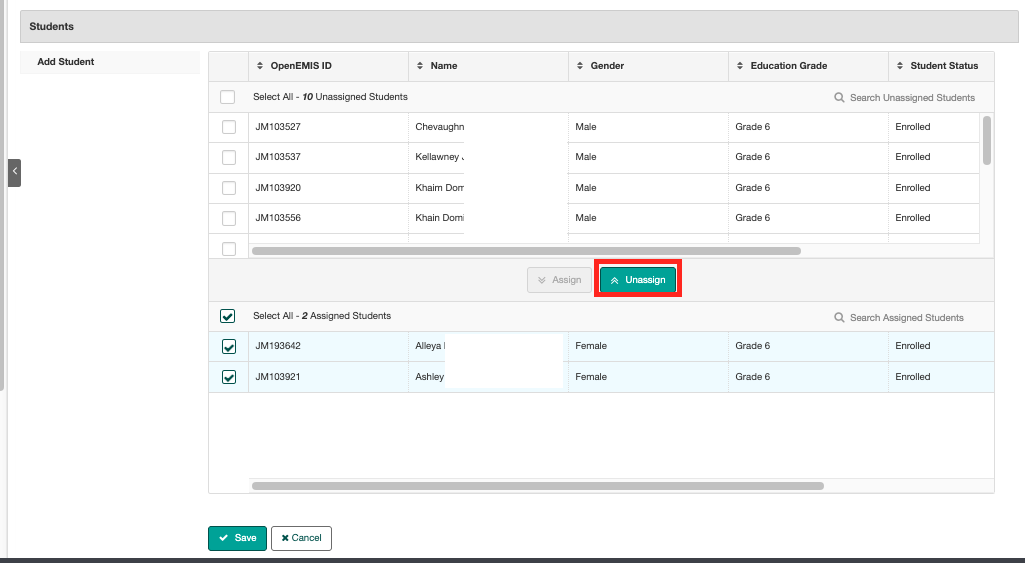
You can unassign students by clicking the checkbox for the Assigned Students and then the Unassign button, then Save.
Was this article helpful?
That’s Great!
Thank you for your feedback
Sorry! We couldn't be helpful
Thank you for your feedback
Feedback sent
We appreciate your effort and will try to fix the article